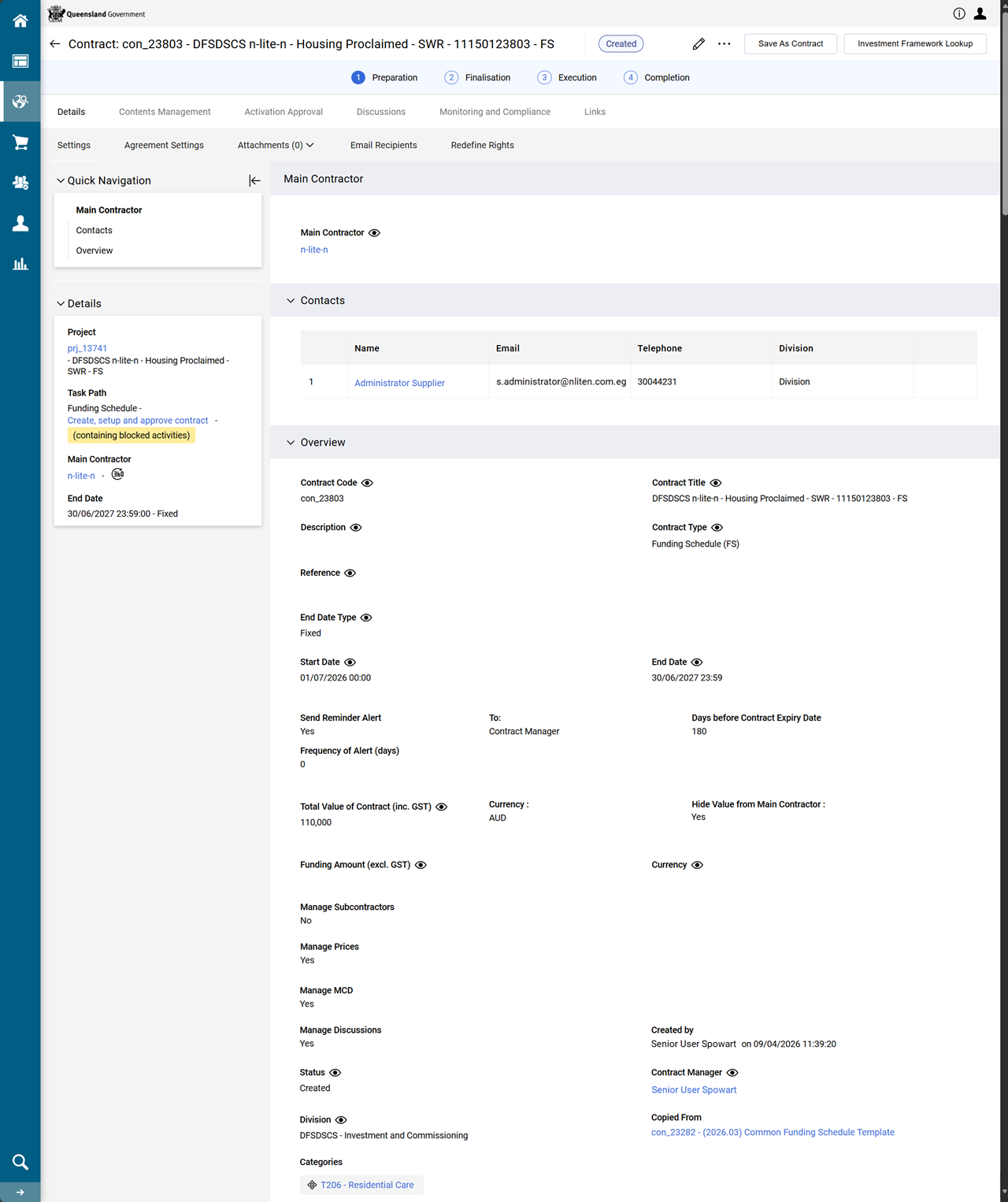
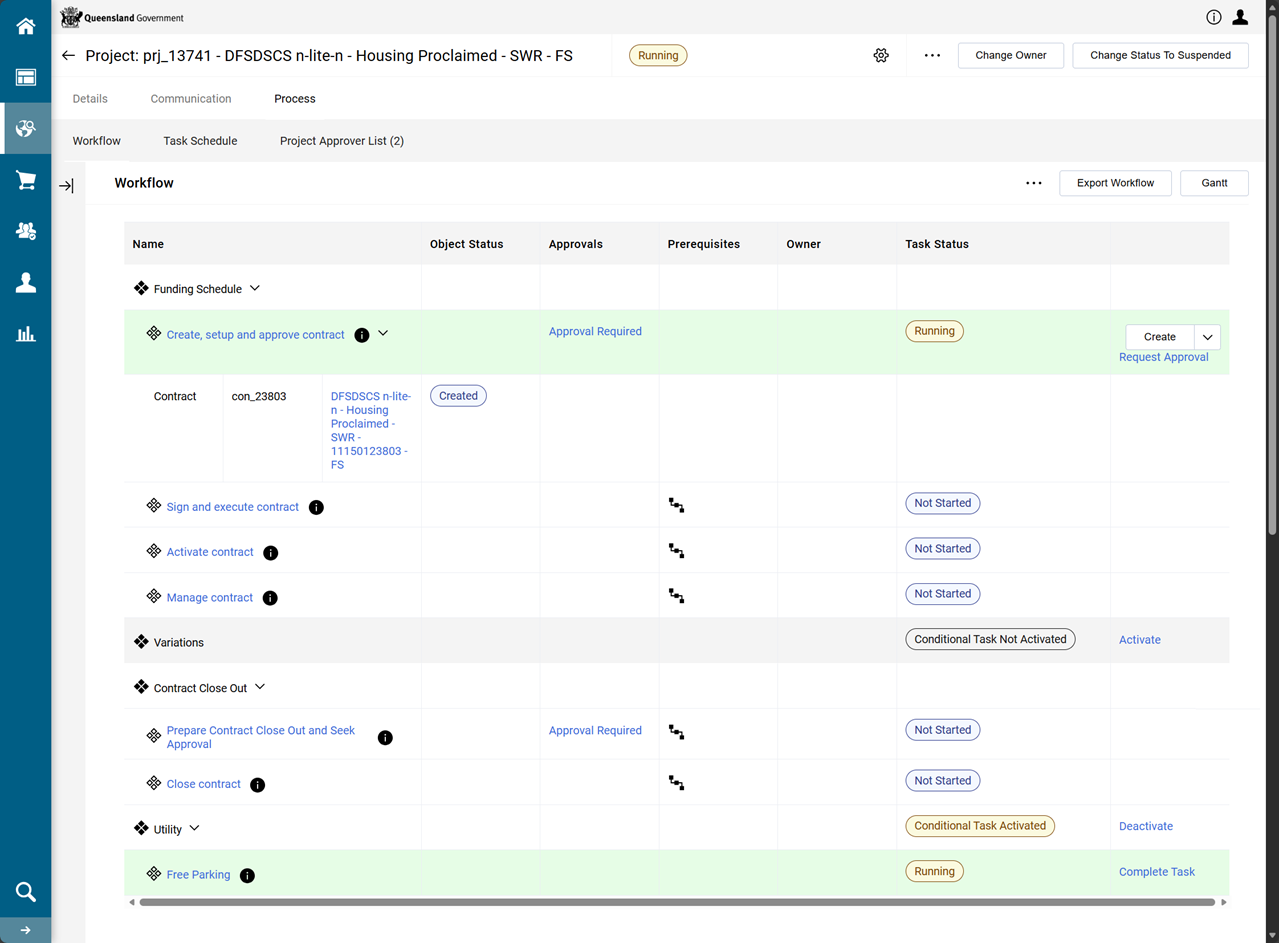
Create an FS contract
Prerequisite: Refer to Funding and Service Details (FSD) Contract and also ensure the existence of the FSD project for the Funded Organisation. Refer to Create an FS or Particulars Project and Use the My Projects list to search for projects
-
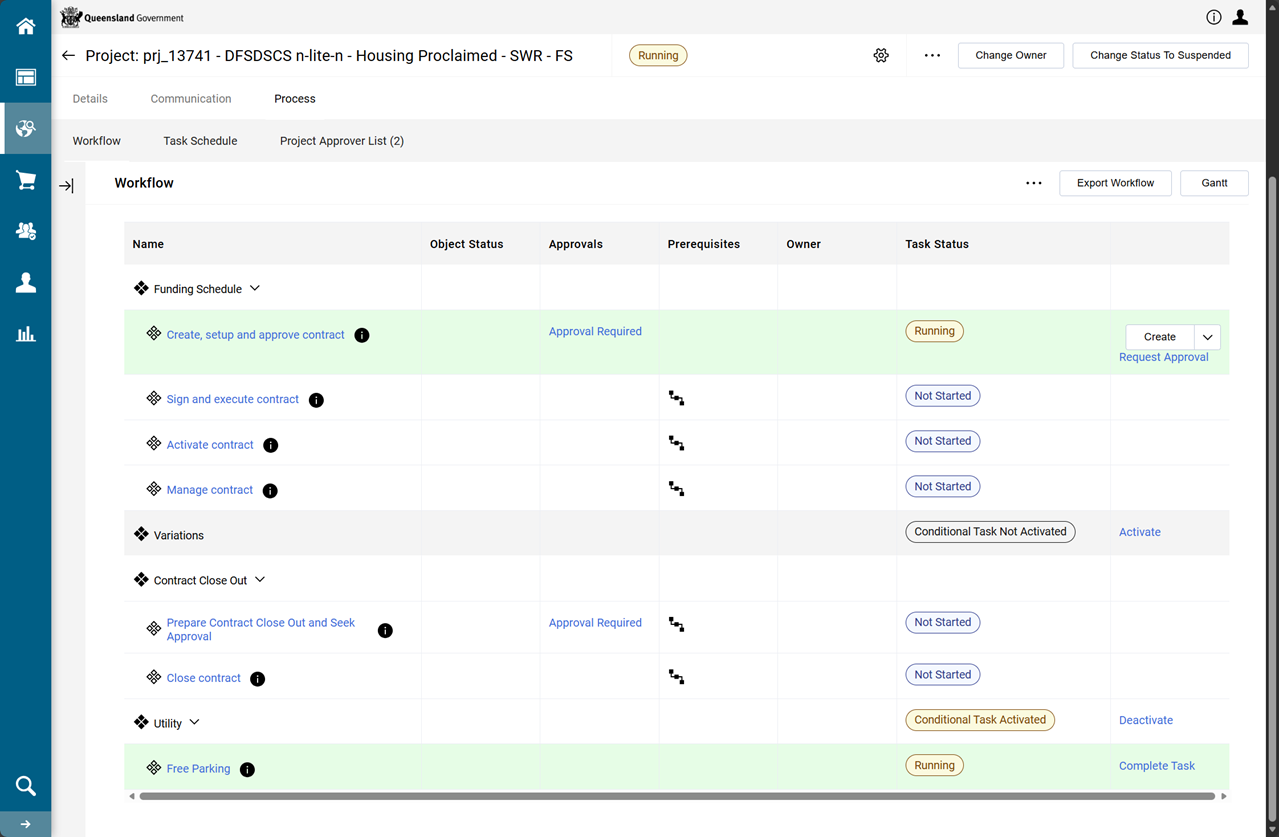
From the FS project, click Process tab > Workflow.
-
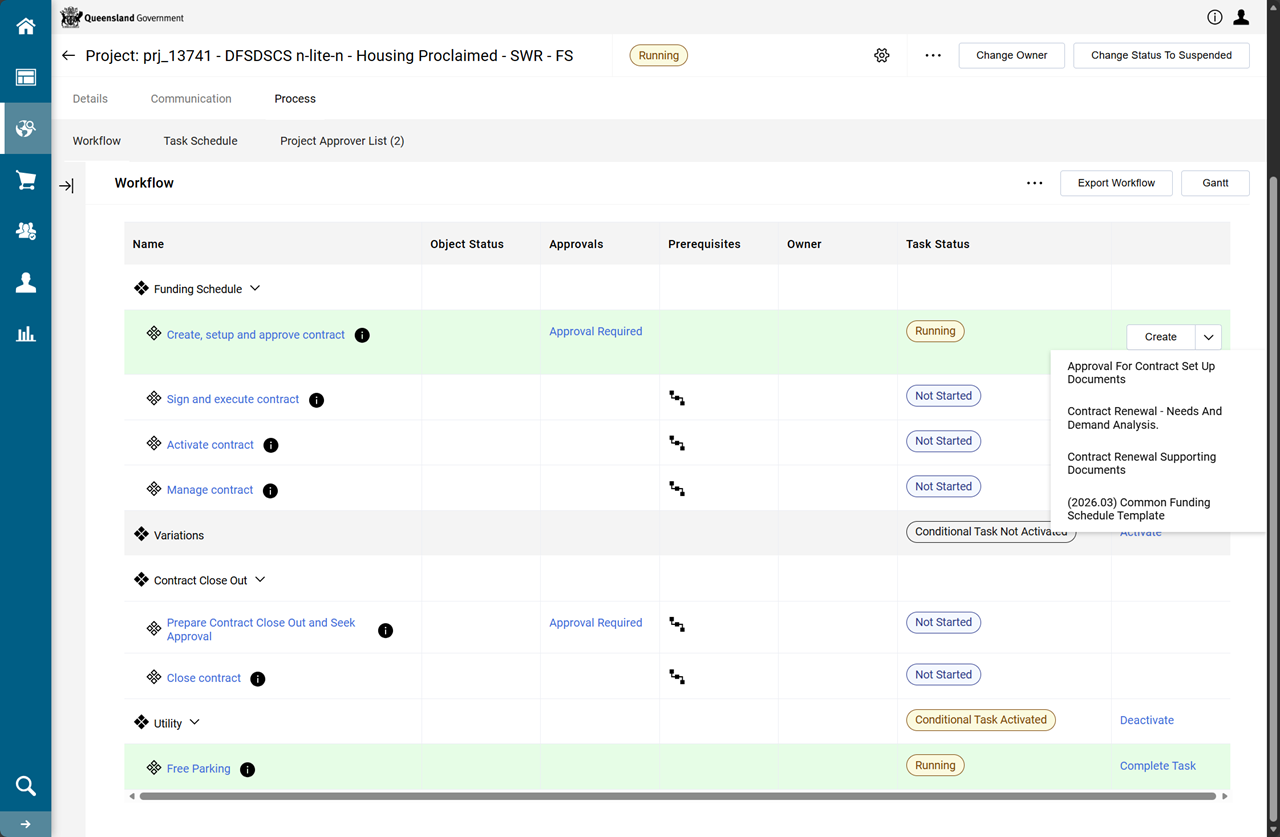
In the Create, setup and approve contract workflow step, click Create dropdown.
-
Select the Common Funding Schedule Template.
Tip An alternate approach to choose a contract template:
-
Click the Create, setup and approve FSD hyperlink workflow step
-
In the Auto Create Template links section, click Create link next to the FS Template.
-
-
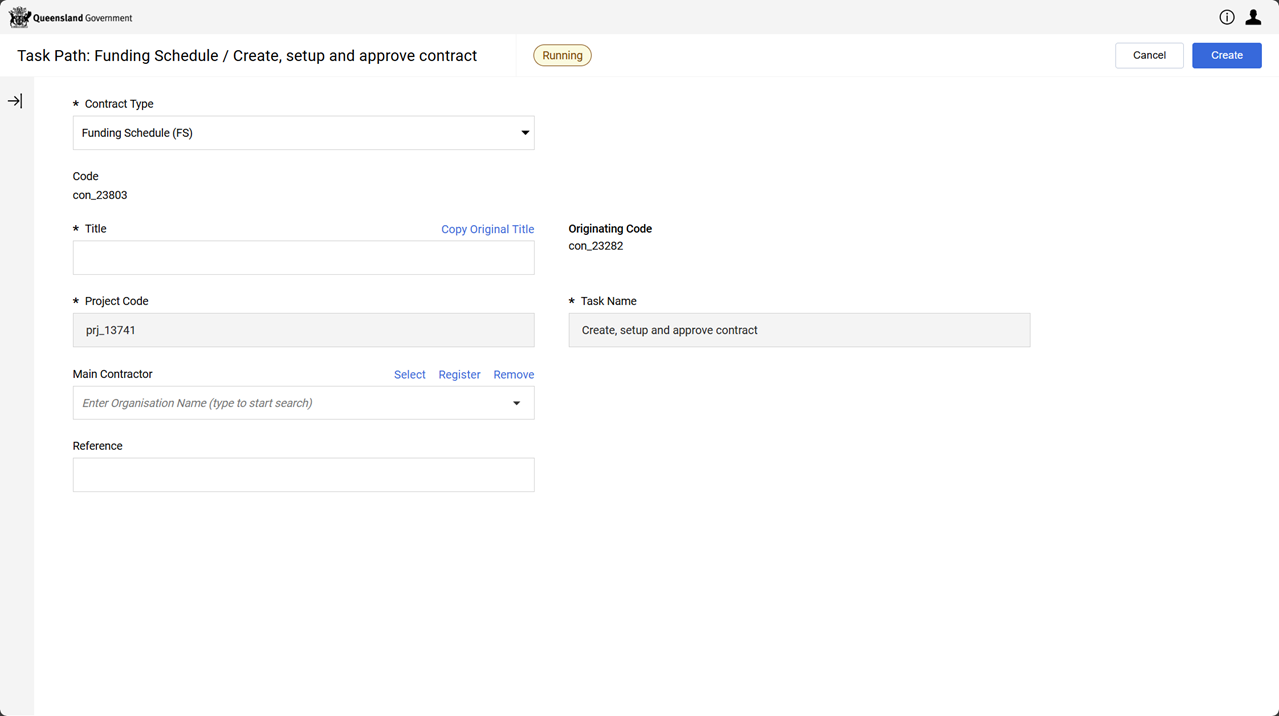
Enter the Title.
Note Follow departmental rules on naming standards.
Consistent naming allows contracts to be easily searched later and improves reporting.
Refer to P2i Naming Conventions.
-
Enter or select the Main Contractor (i.e. a Funded Organisation).
-
Click Create.
-
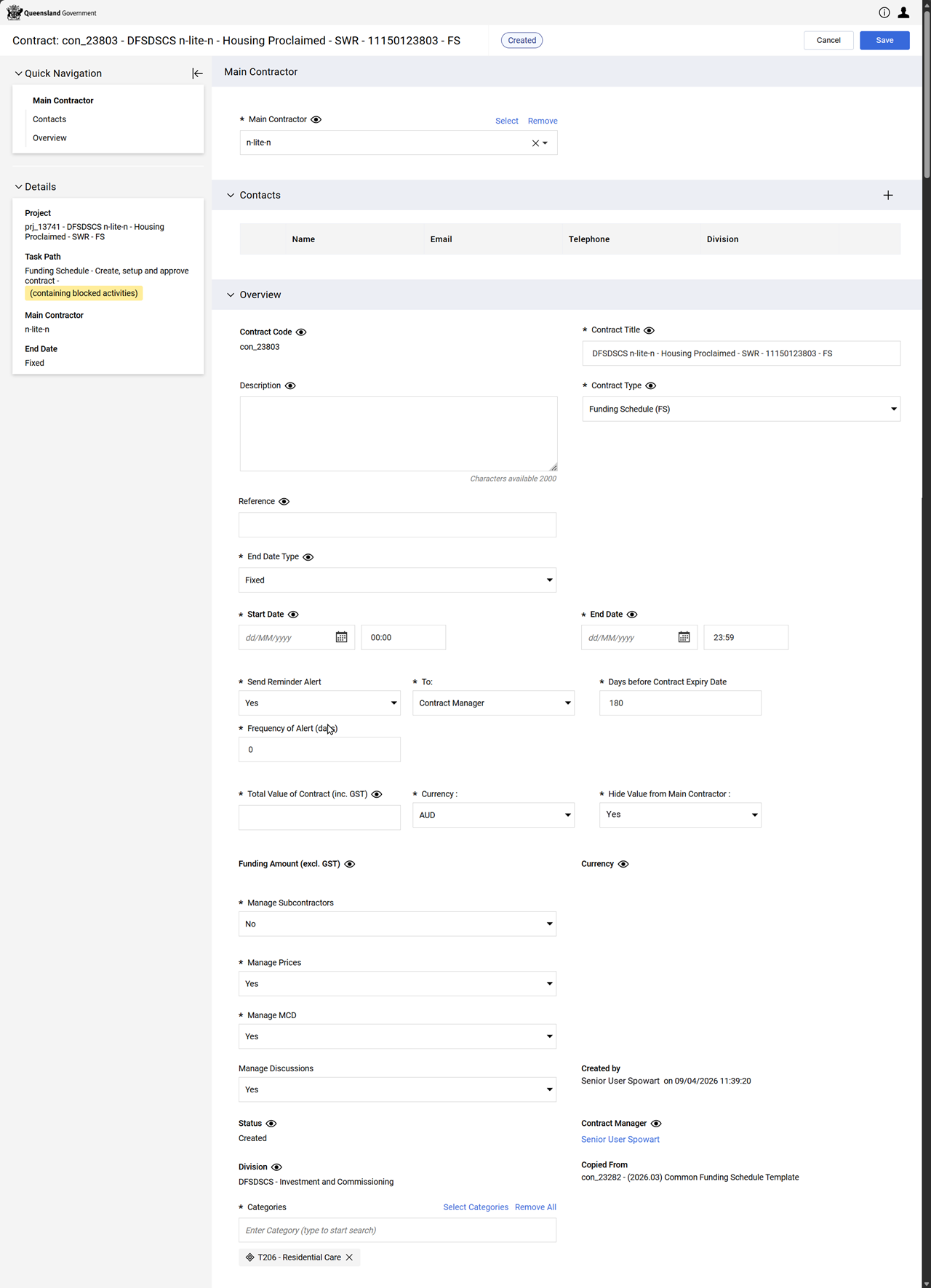
Complete the Overview section.
Tip Refer to Settings page for a breakdown of the fields on this page.
-
Leave Contract Type as entered.
Warning Do not change the Contract Type. The template has already been chosen and has automatically generated clauses when selected. Changing the Contract Type does not change these clauses and the contract will be generated incorrectly.
-
Enter a Start Date and End Date.
-
Set the Send Reminder Alert, who receives the alert, and the Days before Contract Expiry Date.
Example Select:
-
Contract Manager - is the P2iContract Officer
-
Buyers (as per user rights) - everyone on the project team
-
Buyers, Main Contractor and Contract Manager - the P2i Contract Officer, everyone on the project team, the nominated contact for the organisation.
-
-
Enter theTotal Value of the Contract (inc. GST) as 0.
Note This is a mandatory field. The Budget Tool is always the source of truth for the total values of the funding schedules.
The Funding Schedule shows the funding amount inclusive of GST. Currently all agreements (and approval letters) show funding amount EXCLUSIVE of GST. The reason is not all funded services attract GST. The Standard Terms and Conditions states Funding is exclusive of GST (See Service Agreement Standard Terms, clause 8.2a and Short Form Terms and Conditions clause 8.1). The financial delegate is currently provided with both a GST inclusive and GST exclusive funding amount to approve.
Leave Currency set to AUD and Hide Value from Main Contractor set to Yes. -
Leave Manage Subcontractors set to No as each Organisation requires its own Contract in P2i.
-
Leave Manage Prices and Manage MCD set to Yes as these are required for setting up the funding amounts and the contract.
-
Leave Manage Discussions set to Yes as this allows you to use the discussion area of P2i to discuss the contract with project team members.
-
Click Save.
Warning
The FSD contract is created.